Smart PDF & Image Tools: Compress, Convert & Optimize Files Online.
Working with PDFs and images is a regular part of modern digital life. Whether you need to turn photographs into a PDF, convert a PDF page into an image, reduce file size, or prepare documents for sharing, using separate tools for every task can quickly become inconvenient.
KBPIXO Smart PDF & Image Tools brings several everyday file utilities together in one convenient online workspace. The platform is designed to help users compress, convert, create, and optimize PDF and image files directly in the browser.
Instead of installing complicated software, users can work with supported files through a simple interface designed for both beginners and everyday digital users.
Explore KBPIXO PDF & Image Tools
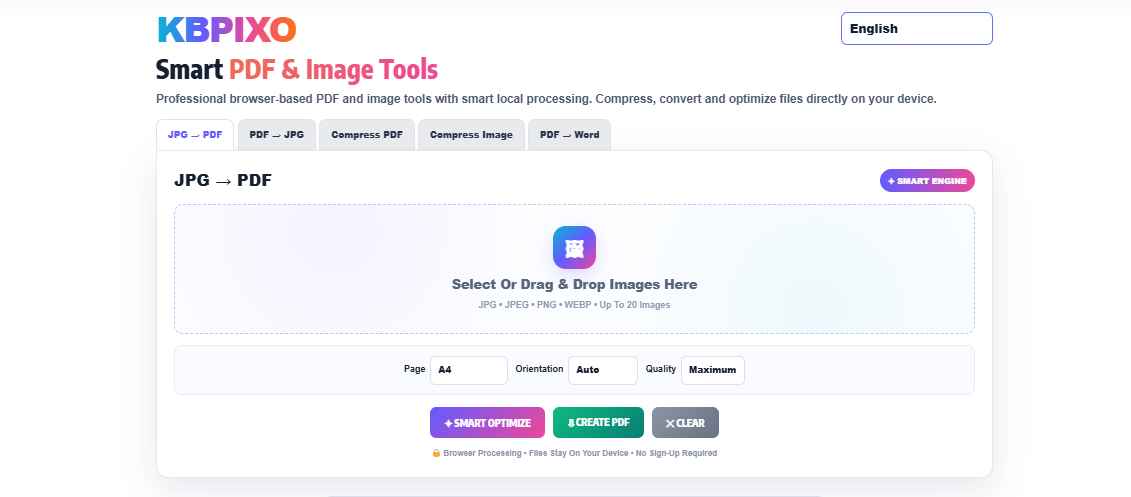
Image suggestion: Add a professional screenshot of the KBPIXO Smart PDF & Image Tools interface here.
Suggested ALT text: “KBPIXO smart PDF and image tools online interface”
What Are Smart PDF & Image Tools?
Smart PDF and image tools are browser-based utilities that make common file-management tasks easier. With the right tools, users can perform operations such as converting images into PDF documents, extracting PDF pages as JPG images, compressing large files, and preparing files for online sharing.
KBPIXO combines these functions into a streamlined tool experience. Its smart processing approach is designed around convenience, straightforward controls, and browser-based workflows.
The available tools include:
- JPG → PDF
- PDF → JPG
- Compress PDF
- Compress Image
- PDF → Word
These utilities can be useful for students, office workers, freelancers, businesses, content creators, and anyone who regularly handles digital documents.
JPG to PDF: Create a PDF from Multiple Images
One of the most useful features is the JPG to PDF workflow. Users can select or drag and drop images into the workspace and prepare them as pages inside a PDF.
The interface supports common image formats including:
- JPG
- JPEG
- PNG
- WEBP
Users can add up to 20 images and arrange them for PDF creation. This is particularly useful when several photographs, scanned pages, receipts, certificates, or image-based documents need to be combined into one file.
The page controls can also provide options such as A4, A5, Letter, or Fit to Image, allowing users to select a suitable page format.
For image compression before or after PDF creation, users can also explore the dedicated Compress Image tool.
Flexible Page and Orientation Settings
Different documents require different page layouts. A photograph may look better when fitted to the image, while an application document may need a standard A4 page.
KBPIXO’s PDF creation interface is designed around these common requirements. Depending on the selected settings, users can work with options such as:
Page Size: A4, A5, Letter, Fit to Image
Orientation: Auto, Portrait, Landscape
Quality: Maximum, High, Balanced, Compact
This gives users greater control over the final PDF instead of relying on a single fixed output format.
For documents intended for printing, A4 is often a practical choice. For digital sharing, fitting the page to the original image may sometimes be more appropriate.
Compress Images Without Complicated Software
Large images can consume storage space and may be difficult to upload to websites, forms, email services, or messaging platforms.
A dedicated image compressor can reduce unnecessary file size while maintaining a practical level of visual quality.
KBPIXO provides an online image compression workflow that can be useful when preparing photographs for websites, applications, uploads, and digital documents.
Users looking for a specific file-size target can also visit the 100KB Image Compressor or explore the Compress Image to 20KB tool.
Image suggestion: Place a before-and-after image compression comparison here.
Suggested ALT text: “Before and after image compression using KBPIXO”
Compress PDF Files for Easier Sharing
PDF documents can become surprisingly large when they contain high-resolution photographs, scanned pages, or multiple graphics.
A PDF compressor can help reduce document size for situations where a smaller file is more convenient.
For example, a compressed PDF may be easier to:
- Upload to online forms
- Send through email
- Store on a device
- Share through messaging platforms
- Submit to websites with file-size restrictions
KBPIXO includes a dedicated Compress PDF tool for users who need to optimize PDF file size.
The goal is to make everyday document preparation simpler without requiring desktop PDF software.
PDF to JPG for Easy Image Sharing
Sometimes a PDF isn’t the most convenient format for viewing or sharing a particular page. Converting PDF pages into JPG images can be useful for previews, online posts, presentations, image collections, or situations where an image format is specifically required.
The PDF → JPG workflow can transform PDF pages into image files, making the content easier to use in image-based applications.
This type of conversion is especially useful when you need to extract visual content from a document without manually taking screenshots.
Image suggestion: Add a visual showing a PDF document transforming into individual JPG pages.
Suggested ALT text: “PDF to JPG conversion using KBPIXO online tool”
PDF to Word for Editable Documents
PDF files are excellent for preserving document appearance, but editing their content can sometimes be inconvenient.
A PDF → Word tool is useful when users need to work with document text in an editable format. This can help with tasks such as updating text, reorganizing information, or continuing work on a document.
The actual conversion result can depend on the structure of the source PDF, especially when the document contains complex layouts, scanned pages, tables, or unusual fonts.
For document workflows, users can explore the broader KBPIXO PDF tools collection.
Why Browser-Based File Processing Can Be Convenient
Installing software for every small PDF or image task isn’t always practical. Browser-based tools provide a more convenient alternative for many everyday workflows.
KBPIXO is designed around local browser processing, helping users perform supported operations directly through the web interface.
The interface highlights:
🔒 Browser Processing
Files can be processed through the browser-based workflow.
⚡ Simple Workflow
Select a file, choose the required settings, and create the desired output.
📱 Convenient Access
Browser-based utilities can be accessed from compatible desktop and mobile devices.
🚫 No Sign-Up Required
The tool experience is designed without requiring users to create an account for basic workflows.
Users should still review the specific privacy and processing information provided by any online service before handling particularly sensitive documents.
A Practical Workspace for Everyday File Tasks
One advantage of combining PDF and image utilities is that users don’t need to search for a different website for every small conversion.
A typical workflow might look like this:
Step 1: Select or drag and drop your images.
Step 2: Choose the require
Free Online Image, PDF & AI Tools
Compress images, convert PDF files and explore smart AI tools — everything you need in one simple place.
```Explore Our Free Tools
Choose a tool and get started instantly.
No tools found
Try a different search term or browse all categories.
Everything You Need, All in One Place
Discover image compressors, photo resizers, PDF converters, AI utilities and more. Search by tool name or select a category to find the right solution for your task.